How to Create a Custom Product Page Template in Shopify (Theme Editor or Page Builder)
Disclosure: some links here are affiliate links, so we may earn a commission at no cost to you. It doesn't change how we compare tools.

I built a bundle layout in the theme editor, hit preview, and it looked fine. On the live product, the old single-SKU page still loaded. I'd never assigned the new template in admin.
You don't need a developer for this. Make a second product template in the theme editor, then attach it only to the handful of items that really need a different page. I'll show the free way first and the app way second.
The short answer
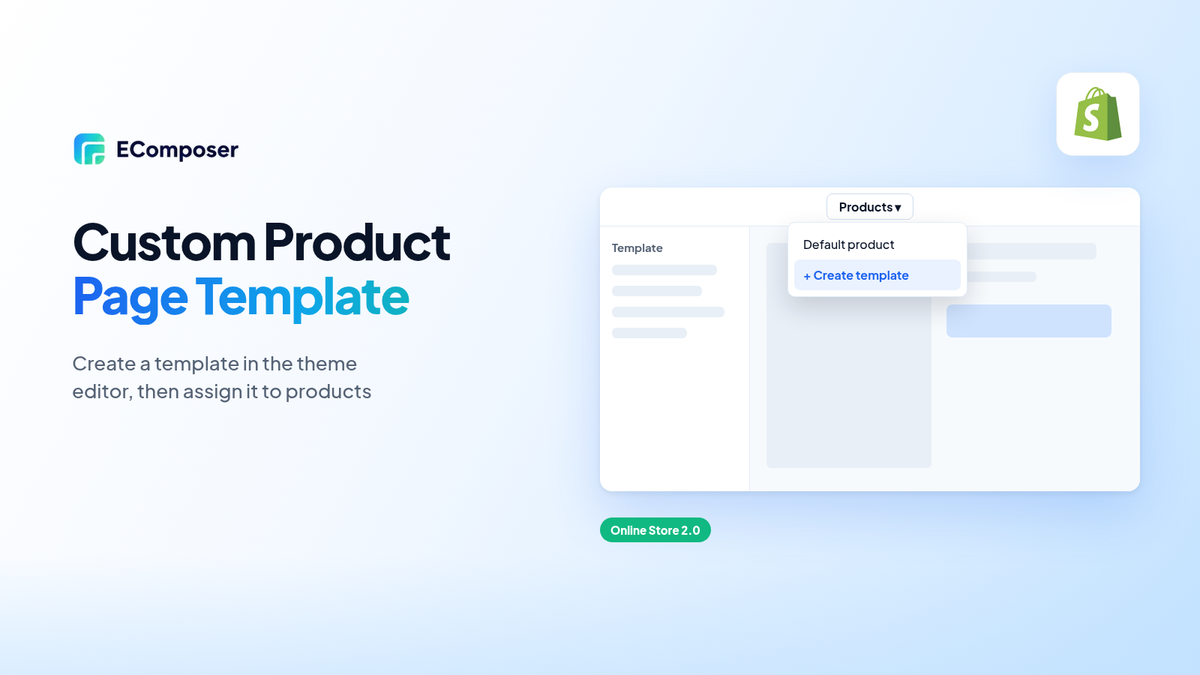
Open the theme editor, choose Products from the page menu, then pick "Create template". Name it and change its sections. Then open a product in admin and choose the new template under Theme template. A page builder can do the same job, but try it on a copy of your theme first.
Button names drift on me every few months. Shopify tweaks the wording in admin and the theme editor, so if your screen says something slightly different, go with your screen.
What is an alternate product template in Shopify?
Under the hood, it's just files, which still surprises people. Your theme already ships with product.json, and every product page reads its layout from that one file unless you override it. A second template, say product.bundle.json, lives in the same folder.
Each product points to one file. Any product you never touch just keeps using product.json, so nothing in the rest of the catalog moves. Shopify's JSON templates documentation spells out the caps. A template holds up to 25 sections, and each section takes up to 50 blocks.
Section limit: 25 per template; 50 blocks per section; rarely a real constraint.
That's plenty for real stores. My busiest product page, with a gallery, 2 tabs, reviews and an FAQ, sits at around 10 sections and still has room to spare.
When one product needs its own layout
A bundle is the classic case. Shoppers want to see what's inside before they buy, and a single image gallery rarely shows that well.
Made-to-order items come next. Buyers want to know about lead times, materials and care before they hand over money for something that doesn't exist yet. Nobody buying a stock mug needs that block.
Gift sets show up a lot too. They usually want a note field for the message and a delivery date picker, two things a regular T-shirt page would never use.
Launches are another reason. A new hero item might get a story section, an unboxing video and a longer spec block for its first month on sale. Later you flip it back to the default.
Seasonal editions fit here. Think of a holiday candle with its own photos and a shipping cutoff note up top.
Keep the count low.
If every product needs the same change, edit product.json itself. Alternates are for the odd ones out.

Method 1: create the template in the theme editor (no app)
Start here, because it costs nothing. The template lives inside your theme files, and if you already know which sections you want before opening the editor, you'll be done over one coffee.
- In admin, head to Online Store, then Themes.
- Hit Customize on a duplicate of your live theme, not the live one.
- Use the dropdown at the top of the editor to switch to Products and make a new template.
- Call it something dull like bundle, and copy from the default.
- Shuffle the sections around, then hit Save.
Short names matter.
Template name: describes a job; not a single item; lowercase and short.
I once named one summer-jacket. The jacket sold out in August, and the name made no sense by October.
Metafields help here. Say each product stores its care notes in a metafield. Link a text block to it, and every product shows its own notes. You build the layout once.
Assign the template to products (one or many)
Creating a template doesn't change any product yet. You have to assign it.
The layout sat in the theme for a day with nothing on the storefront. The product still pointed at default until Theme template got set in admin.
Assign in admin: open the product; find the template dropdown on the right; save.
The change shows up immediately, but only on themes that contain that template file.
Got forty products to switch? The bulk editor might have a template column you can fill in one pass instead of opening each product. That has varied over the years, so look before you plan.
Check it on 1 product first, then do the rest. I mean it.
One detail trips people up. A product doesn't store the layout at all, only a name like bundle, which it looks up again on whatever theme happens to be published. Move to a theme without a bundle file, and that product quietly reverts.

Method 2: build the product template with a page builder
Some layouts your theme just can't do. A builder app lets you drag in pieces the theme never had.
There's a price. Every app adds script weight that shoppers download on each visit, and you'll end up babysitting it after every theme update for as long as it's installed.
Not every builder behaves the same on a product page. The last one I installed left my theme template alone and only added blocks; a different tool wiped the page and drew its own. For the block route, see Shopify's theme app extensions docs.
I break a few things on purpose before I pay for the plan. Once the sale price stayed stuck after I changed variants, until a hard refresh. I also click add to cart just to see if the drawer still opens.
EComposer is one I've used. Its free tier allows one live page or section, per the Shopify App Store listing. Others are similar. Pricing moves, so read the listing yourself.
If you're unsure whether a builder fits your theme at all, our guide on using a page builder with a Theme Store theme walks through the checks.
Theme editor vs page builder for product pages: a quick decision table
| What you need | Theme editor | Page builder |
|---|---|---|
| Reorder sections the theme already has | Handles it well | Works, but it is more tool than you need |
| A layout the theme has no section for | Needs a developer or custom Liquid | Usually possible with drag and drop |
| Easy theme updates later | Templates stay inside the theme | Check how the app stores its templates |
| No extra monthly cost | Included with your theme | Free plans are limited; paid plans cost more |
When Dawn fits: sections already exist; budget is zero; speed matters most.
Most shops I help stay put. A builder only makes sense when you've hunted through every section your theme offers and none of them can do the job. Our theme vs page builder comparison goes deeper on that choice.
Old themes can lack newer block types. So first, check which Shopify theme you are running and its version. Worried about load time? See our list of fast Shopify themes for ideas.
A plain page that loads fast beats a pretty one that stalls. I'd pick it every time.

Test before you publish
This part gets skipped. Don't skip it.
Never build a new template on the live theme if you can avoid it. Duplicate the theme and do the work there.
Preview a real product on it. Click through every variant and watch whether the price and photo actually update. Add one to the cart. Then grab your phone and repeat, since mobile breaks in sneaky ways.
I run Lighthouse in Chrome DevTools on the product page before the change and again after it, mainly to catch a slowdown.
Ask a coworker to click through once. Mine found a badge covering the title on a small Android screen.
When it all looks right, publish the duplicate. Keep the old theme around for a week or so, just in case a customer spots something you missed and you need to roll back.
Common mistakes
Most of these are small. Each one is easy to miss.
Renaming a live template is the worst. Products still ask for the old name and drop back to the default.
Deleting a template that's still assigned causes the same problem. Check which products use it first.
Empty metafields bite too. When a product has nothing stored in the field, the linked block renders blank and the whole page looks half built.
Copying templates between themes is risky. If a section exists in the old theme but not the new one, the editor drops it without any warning at all.
And editing the live theme directly means customers see every half-finished change. A duplicate costs nothing.
FAQ
Can I have different product page layouts for different products on Shopify?
You can. Build a second template and attach it only where you want it. The rest stay as they are.
How many product templates can a Shopify theme have?
I haven't seen a hard cap on the count. The caps are inside each one: 25 sections, 50 blocks per section. Most shops need three or four.
What happens to the product template if I change themes?
Only the name travels. If the new theme has a matching file, it's used. Otherwise you get the default.
Can I assign a template to many products at once?
Often, if the bulk editor shows a template column among the fields it lets you add. If it's missing, you'll do them one by one.
Do I need a page builder to make a custom product page?
Not usually. The free editor covers most cases. Reach for an app only when a section is missing.
Will a custom product template affect SEO or URLs?
URLs stay the same. What moves rankings is cutting the useful text while you rearrange sections, so leave that copy in place.
Templates cost nothing to delete. Make a rough one this afternoon, show it to whoever packs your orders, and toss it if they shrug.
Build one template for one real problem and test it on a copy before you touch a builder.