Using a Page Builder With a Shopify Theme Store Theme: Compatibility, Speed and Setup Checklist
Disclosure: some links here are affiliate links, so we may earn a commission at no cost to you. It doesn't change how we compare tools.

Most Theme Store themes do the basics well enough. Then marketing asks for a landing page the editor just can't make, and somebody mentions a page builder app. The same worries come up every time. Will the header break? Will the store slow down? And what about those pages after the next theme update?
Those worries are fair. None has a one-word answer. Below we go through what your theme can already do and how builders hook into Online Store 2.0, then the checks we'd run on a duplicate theme first. The comparison table near the end is sorted by launch year, so you can judge the apps yourself.
Will a page builder work with my Theme Store theme?
Usually it will. Since Theme Store themes are built on Online Store 2.0, a builder adds its own pages or app blocks and leaves your theme code alone. I'd still check two things on a copy first: whether builder pages show your header and fonts, and whether they survive a theme update.
How well it works comes down to two things. One is how the builder renders its content, and the other is how strictly your theme applies its global styles. We'll take each in turn below.
What a Theme Store theme already gives you
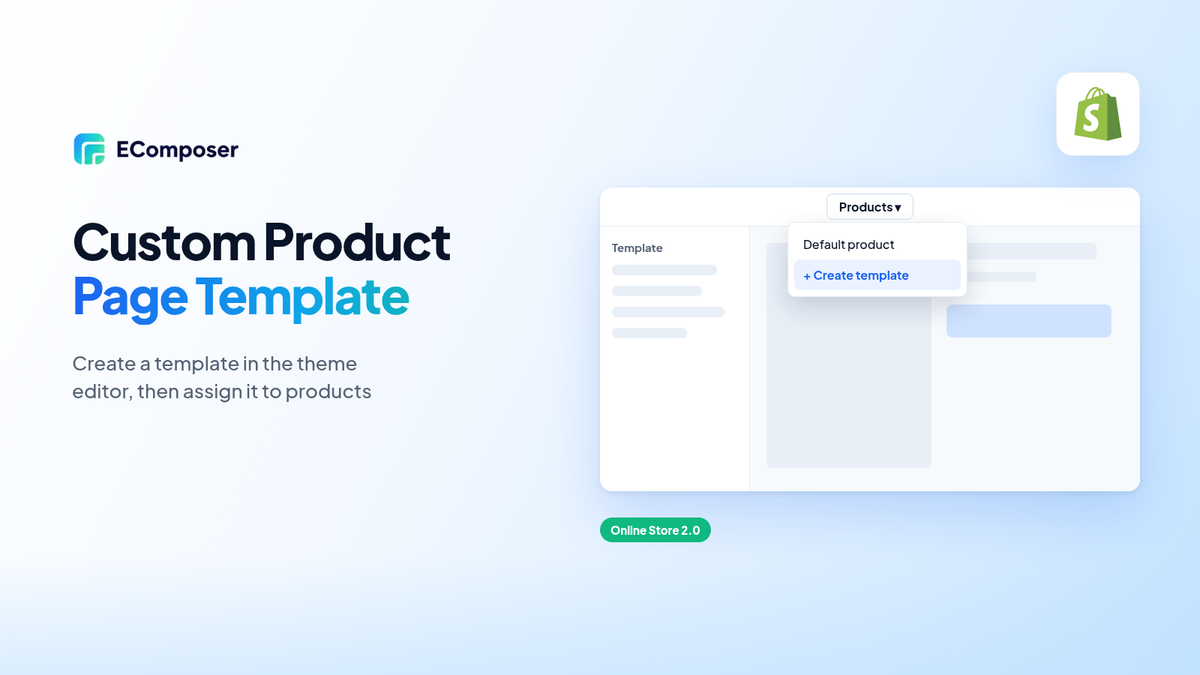
Every current Theme Store theme uses JSON templates. You arrange sections in the theme editor without touching code. Shopify's JSON template documentation allows up to 25 sections per template. Each section can hold up to 50 blocks. Few stores come close to that. We often find that the section a merchant skipped in the editor could have handled the exact layout they were about to buy a builder for.
It's worth opening the theme editor and counting what you have before you spend money. Rich text and image banners come standard in most themes. Many also add an FAQ block or a custom Liquid section. Plenty of stores never need more than that.
Every page type has a JSON template. One template takes up to 25 sections, and each section holds blocks like a heading or a button. Colors and fonts sit in theme settings. All the templates read from there.
Keep the styling settings in mind for later. If a builder ignores them, its pages can end up with slightly different buttons or fonts from the rest of your store, and shoppers do notice. A slightly different button radius looks careless.
When a builder adds value, and when it doesn't

A builder pays for itself when you keep needing layouts your sections can't produce. Long sales pages are a common case. Monthly campaign pages are another. It also helps when whoever edits pages day to day would rather drag things around on a canvas.
A store that needs only one or two extra pages, such as an About page and a seasonal promo, can usually skip the app and keep its monthly costs down. Both usually fit inside existing sections. For a one-off widget, a custom Liquid section does the job without a monthly fee.
Metafields are where it gets fiddly. Maybe your product pages pull size charts from them. Some builders read those fields fine. Others, not so much. So test on a duplicate theme with a real product template before paying, and look for the size chart.
- Get a builder if you launch campaign pages often, or need layouts your sections can't make.
- Stick with the theme for the odd one-off page on a small catalog.
- Call a developer for custom cart or checkout logic. Builders don't touch that.
How builders plug into an Online Store 2.0 theme
Builders connect to a theme in one of three ways. The difference matters most on the day you change themes, so it's worth knowing which one your app uses.
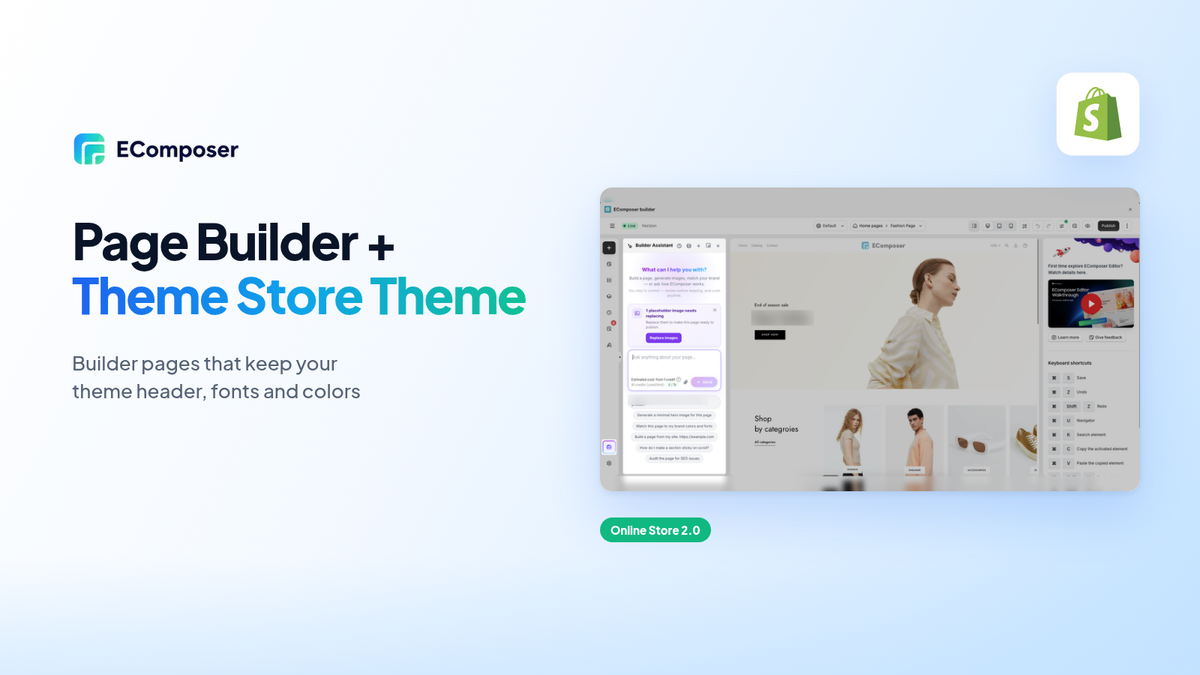
With full pages, the builder publishes the whole page or template. The theme usually still wraps it. Its header and footer stay, and the builder controls everything in between.
App blocks arrive through a theme app extension. Shopify's theme app extensions guide describes two kinds: app blocks and app embed blocks. You place app blocks inside your existing sections, the same way you'd add any other block.
Some apps push their own sections into the theme so you can add them to theme templates. That's convenient. The catch is that those sections belong only to the theme they were pushed to, so a different theme won't have them until the app pushes them again.

Where the content is stored decides how much work a theme change takes. App block content sits in your theme's templates. A new theme therefore needs those blocks placed again, whereas full builder pages are kept by the app and move across with less effort. Pushed sections land in between.
Compatibility checklist before you install

We run every check below on a copy of the theme, never on the published one. Shopify lets you duplicate a theme from the theme library in a few clicks. It's free. It also means a broken menu or a font that falls back to Arial only shows up on a preview link.
- Publish a test page and make sure the theme header and footer show up.
- Check that the builder picks up your theme fonts and colors, so you aren't setting styles twice.
- Put a builder button next to a theme button and look at both on your phone.
- Open a metafield inside the builder. The value should match what the theme shows.
- Add something to cart from a builder page. The theme's cart drawer should open like normal.
- After a theme update, recheck the builder pages. If the docs say nothing, ask support.
- Removal cleanup: leftover snippets listed · what stays in the theme after uninstall.
People forget the last check. Ask support before installing. Code left behind by removed apps is a common reason a store gets heavier over the years.
Speed: what to measure before and after
You won't find speed figures in this post. Load times depend on your own theme and apps, so our number wouldn't describe your store. Measure it yourself. It takes about ten minutes.
Run Lighthouse in Chrome or PageSpeed Insights on the same type of URL before and after you install. We run each test three times and keep the median. Mobile usually matters more.
- In Lighthouse, write down LCP and TBT. If the layout jumps, note CLS as well.
- In the Network tab, check page weight. Then see if the builder's files load on pages that don't use it.
Script loading deserves a closer look. Some builders load files only on their own pages. Others load everywhere, product pages included. To check, filter the DevTools network tab by the app's domain, then reload a product page and a builder page and compare which files show up on each one.
Switching or updating your theme without losing builder pages
Updates and switches differ. Updating keeps you in the same theme family, so most content carries over. Switching moves you to a theme with different section files and settings.
When we update, we start with a duplicate of the new version and open three builder pages, checking each one on a desktop browser and then again on a phone. Layout and fonts get a quick look. Then the cart. If the builder had pushed sections into the old version, they may need pushing again.
Switching is harder. Much harder. Start with a list of every builder page and every template that holds app blocks. Those blocks get rebuilt on the new theme before anyone presses the publish button, while full builder pages need a visual check.
Try not to change page handles during the move. If one does change, add a redirect in Shopify admin so that old links and search results still send shoppers to a page that actually works.
Choosing a builder: a neutral comparison
Below are four popular builders, ordered by the year each one launched on the Shopify App Store. It isn't a ranking. We took prices from each app's App Store listing on 3 November 2026. Plans change often, so check the listing again on the day you buy.
| Builder (by launch year) | Free plan | First paid plan | Higher plans | Notes from the listing |
|---|---|---|---|---|
| Shogun (2015) | Draft pages only, no publishing | $39/month, 25 published pages | $199 and $499/month | A/B testing sits in a separate app |
| GemPages (2017) | 1 published page | $29/month, unlimited publish slots, 20 theme sections | $59 and $199/month | Version history of 50 records per page on the first paid plan |
| PageFly (2017) | 1 published slot (page or section) | $24/month, from 5 published pages or sections | $99 and $299/month | Extra slots at $5 per 5 pages or sections |
| EComposer (2022) | 1 live page or section | $25/month, 15 live pages or sections | $49 and $129/month | 7-day free trial on paid plans |
The monthly price is only part of the cost. If you publish a lot of pages in a normal month, a plan with a slot cap can end up costing more than one with a higher price on the listing. Shogun's free plan is a good example, since it lets you build drafts but not publish them.
How your team likes to edit matters as much as price. Some people want a drag-and-drop canvas. Others would rather stay with blocks inside the theme editor. Neither is wrong. Ask the person who'll do the editing.
If you'd like to try one, EComposer has a free plan with one live page, which is enough to work through the checklist above. The other three also list a free plan or trial. We'd test two of them on the same duplicate theme and compare.
For more background, read our take on theme vs page builder and our list of free Shopify page builder apps. If you're still picking a theme, see fastest Shopify themes or learn how to check which theme a store uses.
Questions merchants ask us
Do page builders work with free themes like Dawn?
Yes. Dawn is an Online Store 2.0 theme, so builders that use app blocks or full pages can run on it. The same header and cart checks from the list above apply to Dawn as well.
Will a page builder slow down my Shopify theme?
It can, depending on how much script it loads and where. Compare LCP and page weight on a duplicate theme before and after you install. Apps that load files only on their own pages affect the rest of the store less.
What happens to builder pages if I change themes?
Full builder pages usually carry over and only need a visual check. App blocks have to be added again. Pushed sections may need to be pushed to the new theme.
Can I use a builder for landing pages and keep my theme's product pages?
Plenty of stores work exactly that way. A yearly Black Friday page is a typical builder job. Product and collection templates stay on the theme, which keeps them easy to update.
Do I need a page builder if my theme has enough sections?
Usually you don't. If the theme editor already handles your layouts, a builder mostly adds a monthly bill. It's worth another look once you notice that your team is rebuilding the same kind of campaign page by hand every month.
Start with the theme you have. Test on a duplicate before deciding. A builder should fix a real layout problem for your store. If you can't name that problem yet, you probably don't need one.